
1. App Layout
Your Hand
Section titled “Your Hand”Mahjong Practice focuses on your hand, not the table.
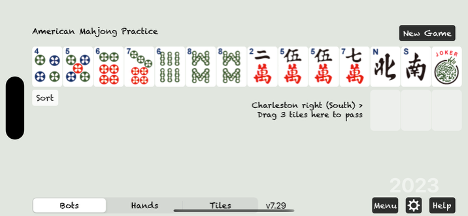
When you open the app, the 14 tiles displayed are your hand. Each hand is generated randomly, so you’ll see something different every time.
Players
Section titled “Players”There are four players, including you: East, South, West, and North.
The counter-clockwise order — East, South, West, North — comes from traditional Chinese cosmology and astronomy.
In the app, you always play as East, the dealer.
The three computer players are called Bots.

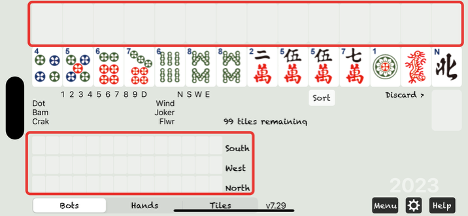
After the Charleston, you’ll see your empty top rack — 14 open tile positions — displayed above your hand. You’ll also see three empty rows for your opponents’ top racks in the Bots view. Tap the Bots button in the bottom-left corner of the screen to switch to this view. These top racks are where you and the bots expose tiles when making a call or exchange tiles for Jokers.
Discard Table
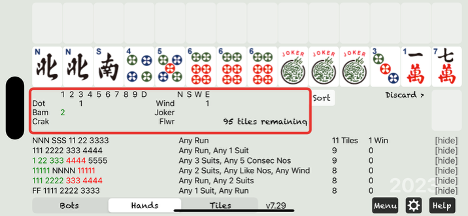
Section titled “Discard Table”Below your hand is the Discard Table, a grid that displays all tiles that have been discarded.
In this example, the discards include one 3 Dot, two 2 Bams, and one East.
The wall shows 95 tiles remaining.
The Wall
Section titled “The Wall”You never draw tiles directly from the Wall. When it’s your turn, a tile from the Wall is automatically added to your hand.
Matching Hands
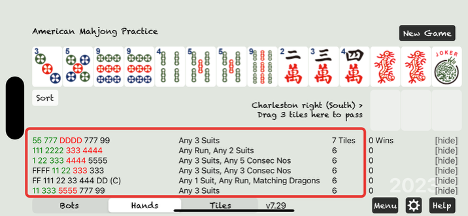
Section titled “Matching Hands”Tap the Hands button to view matching hands.
They’re sorted by how many tiles on your rack match each hand — the more matches, the higher they appear on the list.
The number in the first column after the hand description shows how many tiles from your rack match that hand.
Experienced players use this list to spot strong hands — including ones they might not have considered.
New players can use it to learn and build strategy. The hand with the most matching tiles might not always be the easiest to complete, but it’s a great starting point while you learn.
There’s no single right answer — different players will make different choices.
During the Charleston, you’ll typically be selecting a type of hand to collect rather than committing to one specific hand.
The list also shows overlapping hands from different sections of the card, giving you more flexibility as you build your hand.
After every tile move, the list is automatically re-evaluated.
If you want to keep your selected hand visible at the top, the Menu button includes an option to stop the automatic sorting.
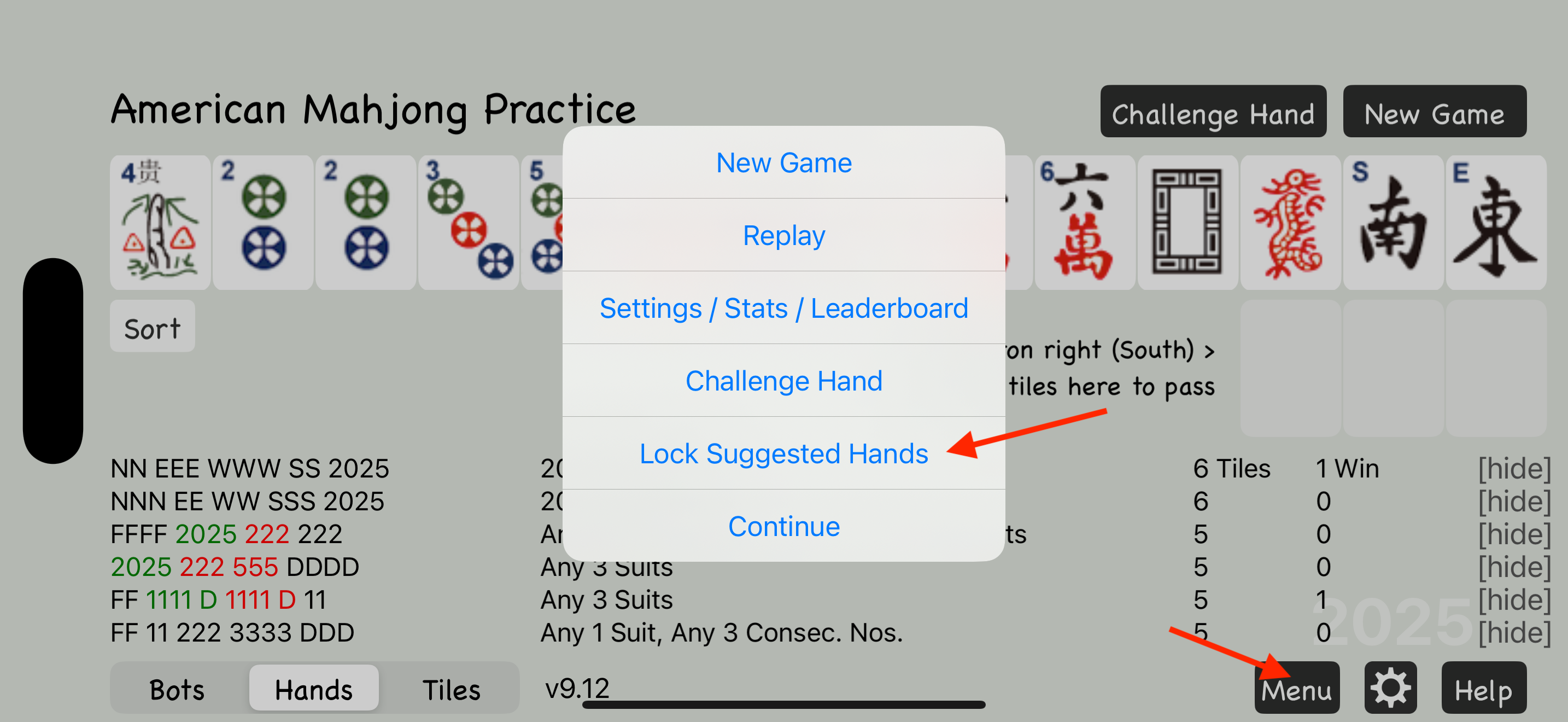
Matching Tiles
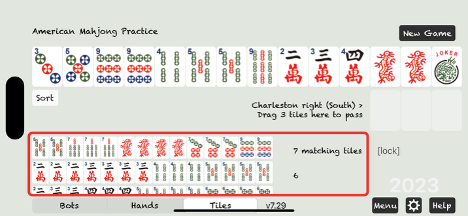
Section titled “Matching Tiles”The Tiles View highlights which tiles in your hand best match the card, helping you decide which tiles to keep and which to pass.
This view is especially helpful for new players who may not yet recognize how their hand lines up with the options shown in the Hands View.
Controls
Section titled “Controls”Along the bottom of the screen are buttons for Bots, Hands, Tiles, Menu, Settings (gear icon), and Help. You’ve already seen how Bots, Hands, and Tiles work — feel free to explore the rest. The Menu, Settings and Help are easy to close and will return you right back to the main view. We’ll go over the remaining controls later.
