5. Settings
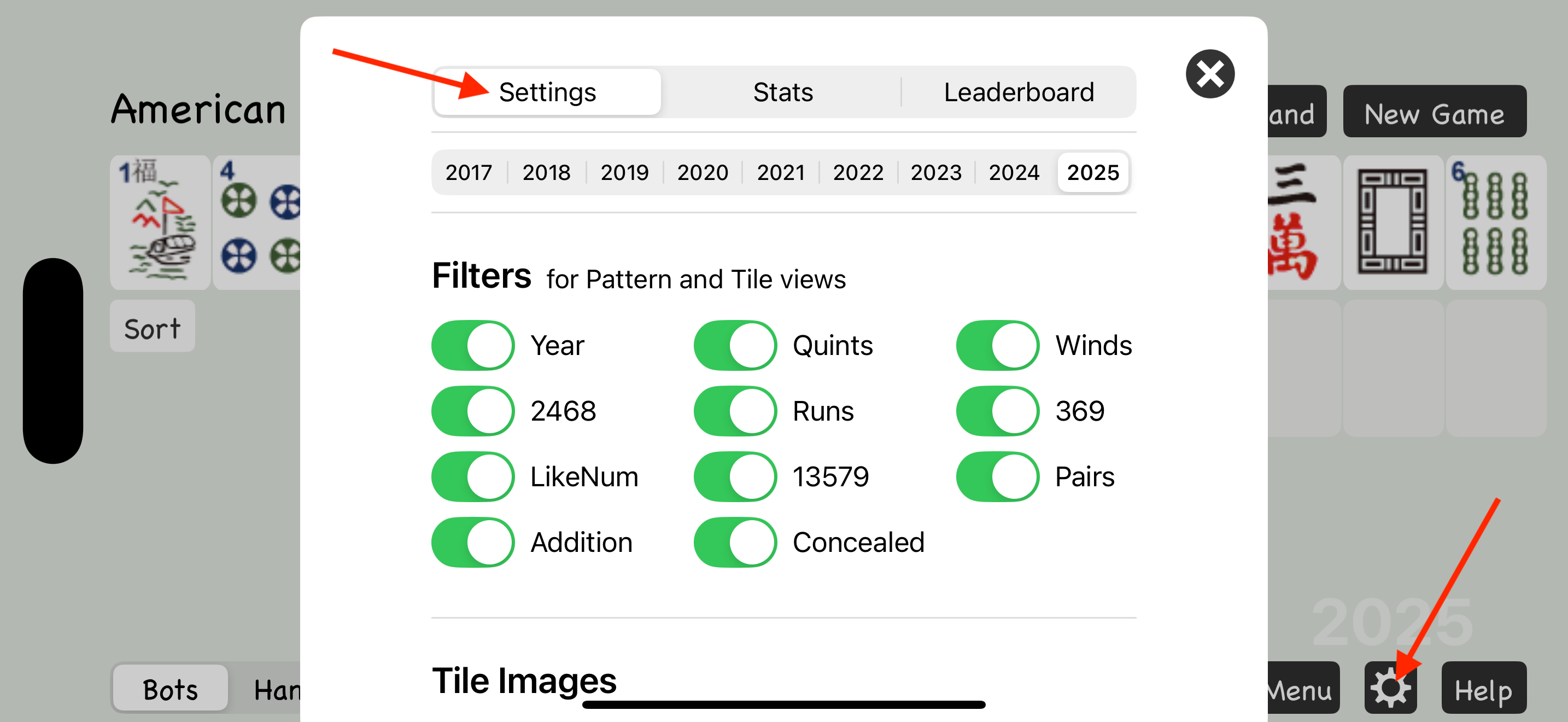
To open the Settings page, tap the gear icon located at the bottom of the app, between the Menu and Help buttons.
Year Selection
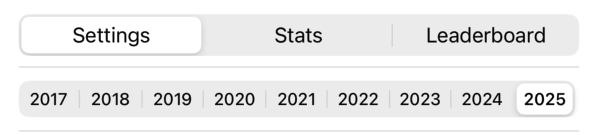
Section titled “Year Selection”The Year Selection at the top of the Settings page lets you choose which card year to use. You can see the selected year as a watermark in the lower right corner of the main page.
If you’re looking for the latest year and it’s not listed, you need to download the latest version of the app from the App Store. New card years are released in April.
Filters
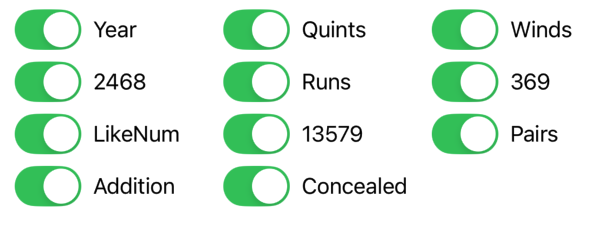
Section titled “Filters”Filters let you hide sections of the card so you can focus on specific types of hands. There’s also a filter to hide all concealed hands.
Hands are still dealt randomly, but filtered-out sections won’t appear in the matching Hands or Tiles views.
If you want to practice one section of the card at a time, you can tap New Game repeatedly until you get a hand that matches the section you’re working on.
Tile Images
Section titled “Tile Images”Try different styles to see which one works best for your screen and visibility preferences.
Classic, Light, Large, Dark, Solid















Color-blind Friendly: Alternative red dragon design for better visibility

Options
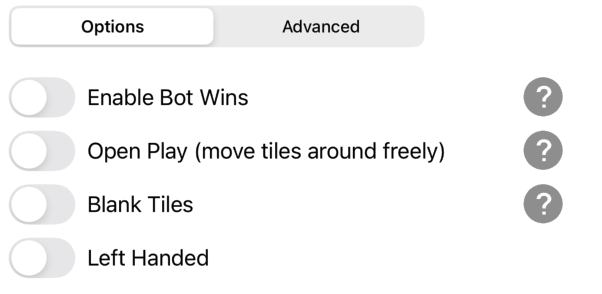
Section titled “Options”Most options include a help button. Tap the question mark icon next to each feature to see more details about what it does.
Tap the Advanced Options button to reveal additional settings.