2. Game Play
Moving Tiles
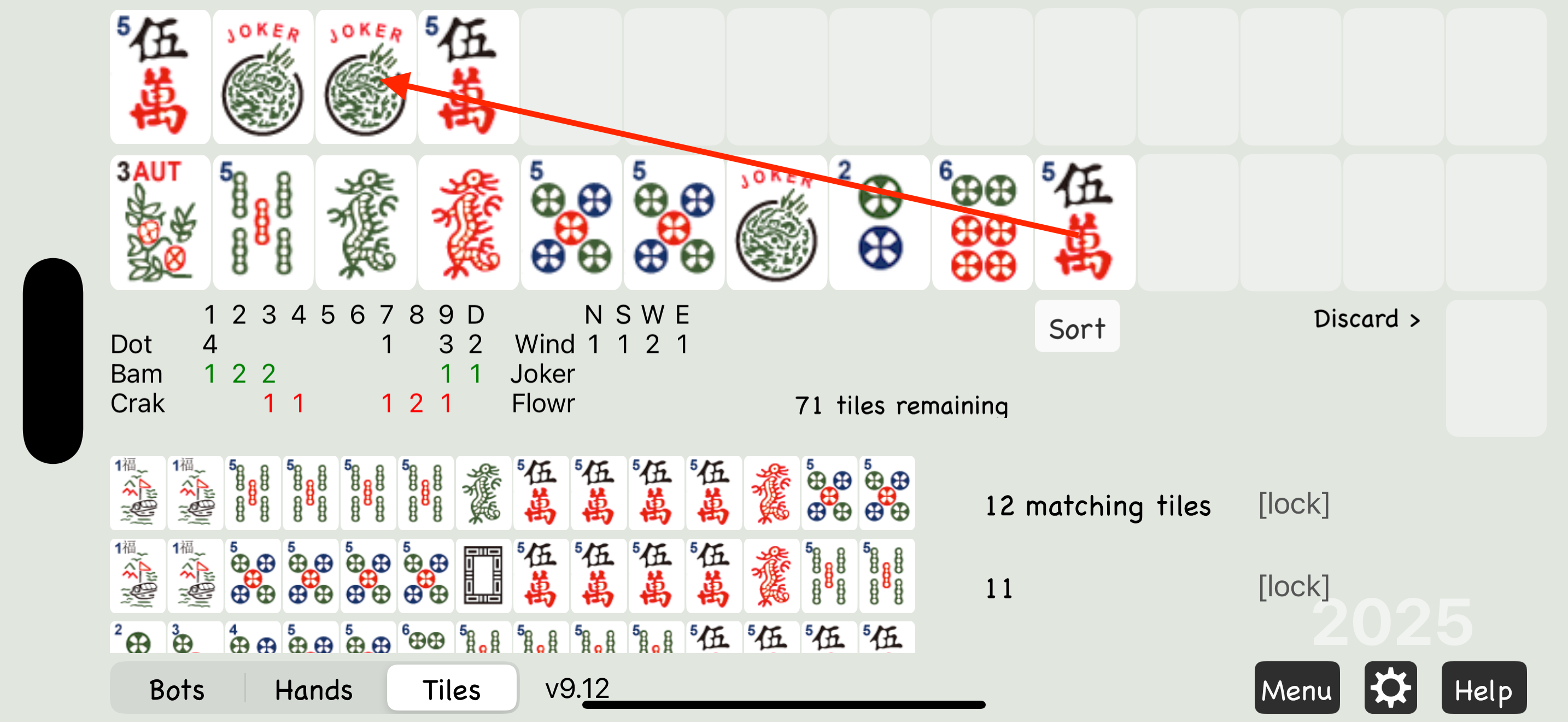
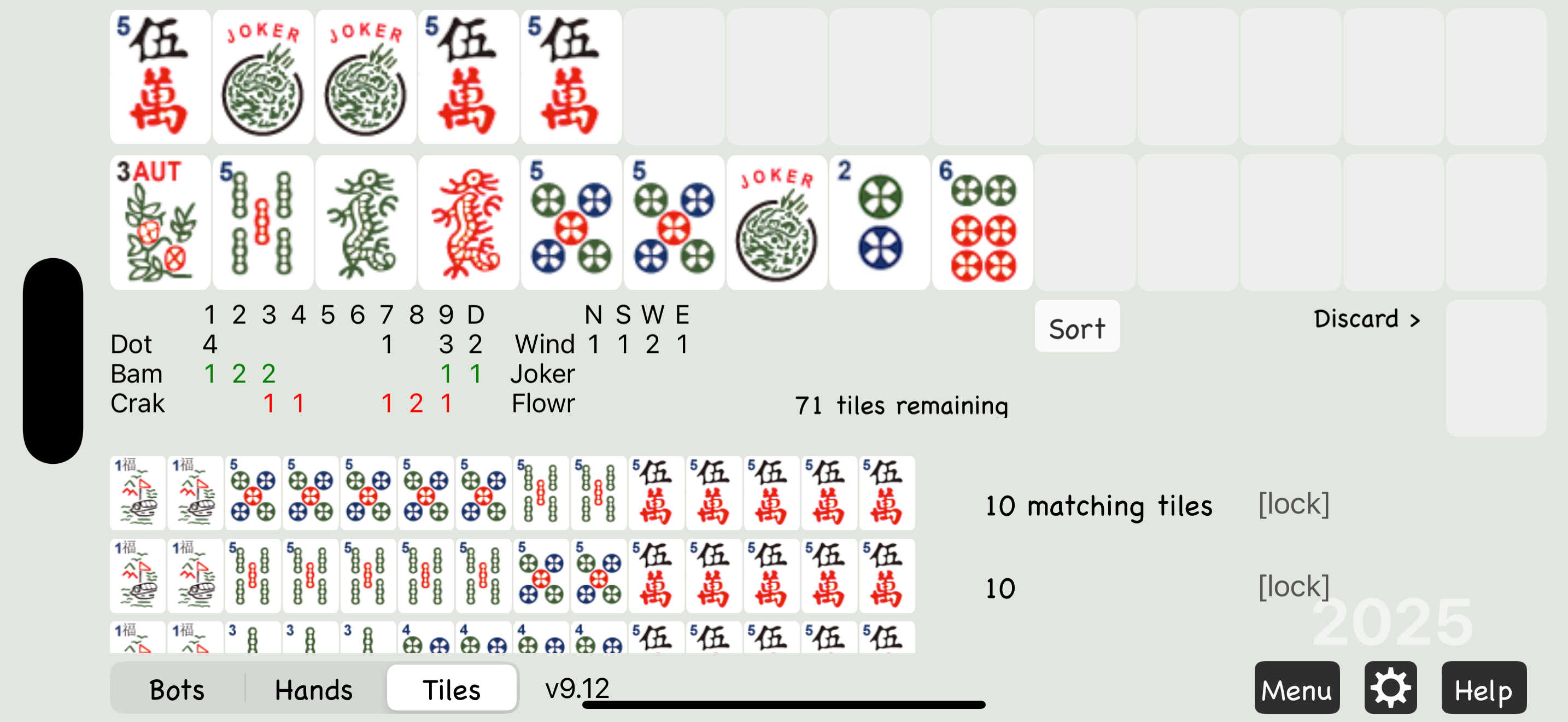
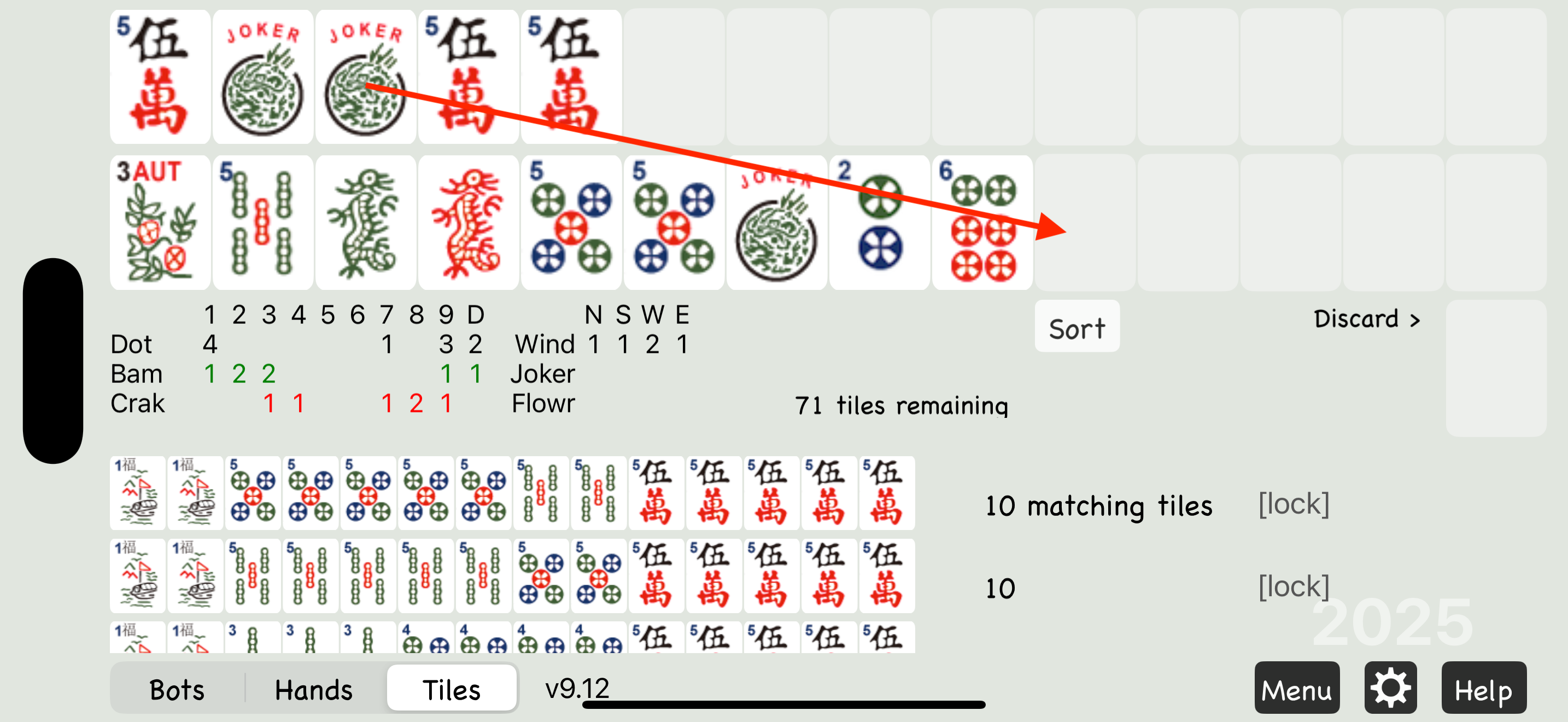
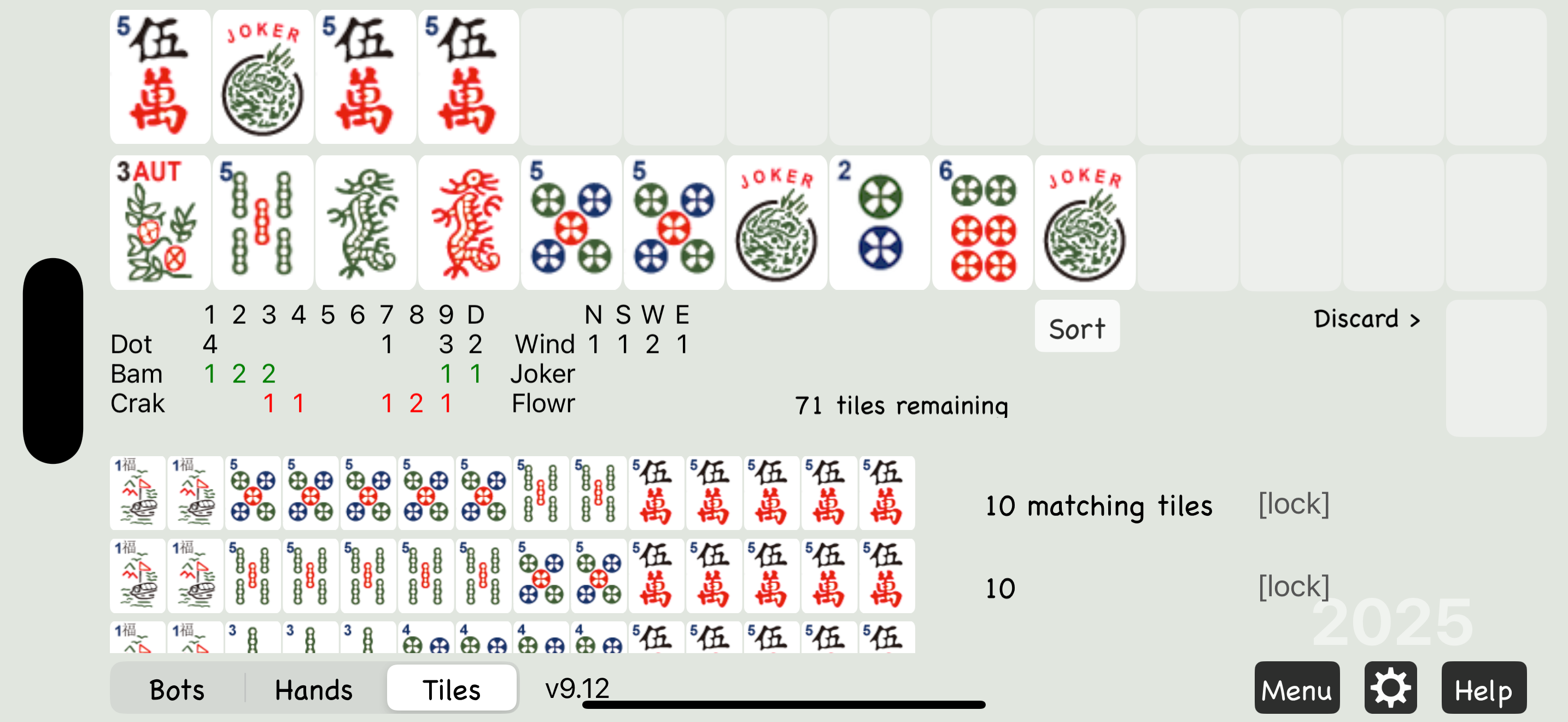
Section titled “Moving Tiles”To move a tile, drag it from its current position and drop it where you want it to go. Tiles aren’t moved by tapping or swiping.
- Touch and hold a tile.
- While keeping your finger on the screen, drag the tile to a new location.
- Release to drop the tile.
Some moves aren’t allowed in American Mahjong. The app will either block these moves or show a warning if something isn’t allowed.
Charleston
Section titled “Charleston”Start by deciding what type of hand you want to build — use the Matching Hands view or refer to your Mahjong card.
Then sort your hand using drag and drop.
To pass tiles, drag the first 3 you want to pass into the empty slots below your hand.
A comment next to the passing area will tell you which Charleston round you’re on and what to do next.
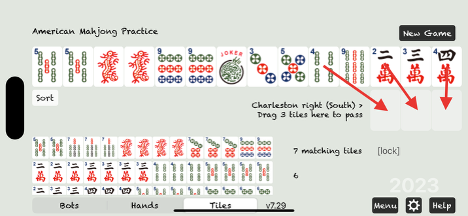
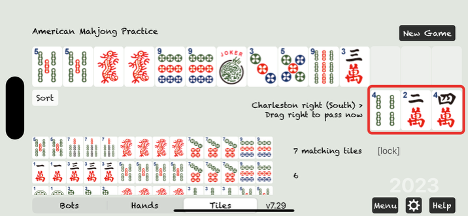
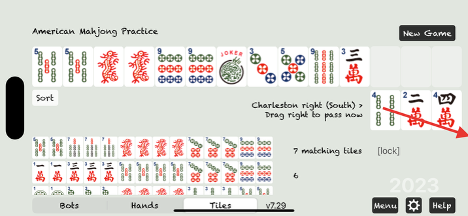
To complete the pass, drag them off the screen to the right.
In this app, all passes and discards are done by dragging tiles to the right.
Three new tiles will appear in your hand automatically.
These tiles were passed to you from the player on your left.
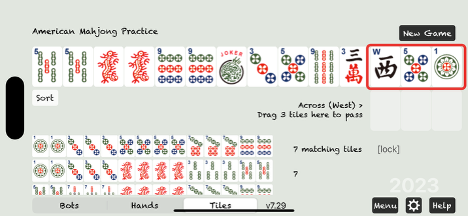
Now drag the next set of tiles you want to pass into the discard area. Continue this process to complete the Charleston.
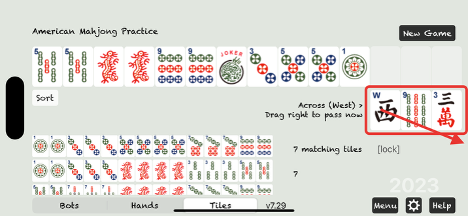
The Charleston follows this sequence: Right, Across, Left, Left, Across, Right, and Courtesy Pass.
The app keeps track of the current step and tells you which player you’re passing to — South, West, or North. It also manages special rounds like blind passes for you automatically.
Blind Passing (First Left and Last Right)
Section titled “Blind Passing (First Left and Last Right)”During the First Left and Last Right passes, you have the option to blind pass. A reminder will appear next to the discard area when it’s available.
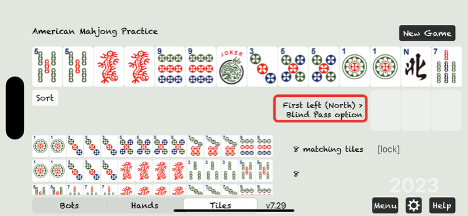
In this example, we only want to pass 2 tiles and blind pass 1. So, we drag 2 tiles down to the pass area and send them. The third tile will be selected at random for the blind pass.
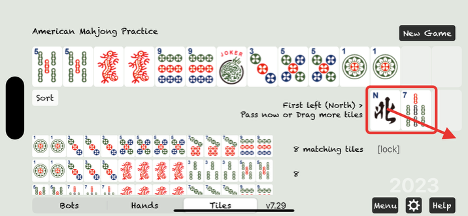
To blind pass all 3 tiles, drag the empty discard area off-screen — just as you would with a tile.
Stopping the Charleston (Second Left)
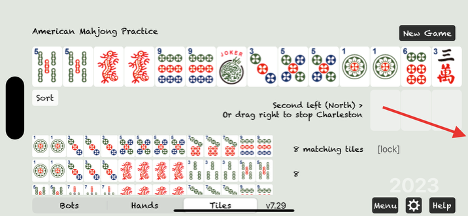
Section titled “Stopping the Charleston (Second Left)”You can stop the Charleston during the Second Left. Only do this if your hand — and possibly a backup hand — are already strong, and passing three more tiles would weaken your position.
To stop the Charleston, drag the empty discard area off-screen.
Main Game
Section titled “Main Game”Since you play as East (the dealer), you’ll start with 14 tiles. After that, a 14th tile will automatically be added to your hand at the start of each turn. You never draw directly from the wall — the app handles it for you.
Discarding
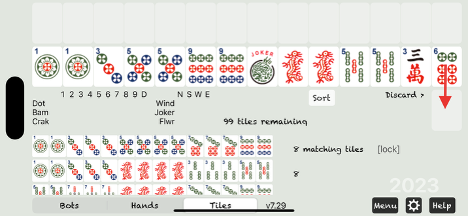
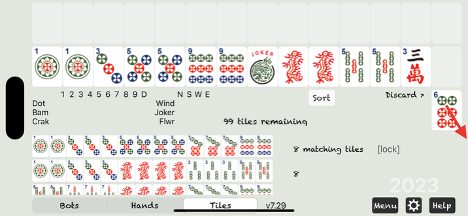
Section titled “Discarding”To discard a tile, use the same process as during the Charleston: drag the tile down to the discard position, then drag it off screen.
Discards From the Other Players
Section titled “Discards From the Other Players”Discards from other players appear in the discard position after your own discard.
A note beside the tile shows which player it came from.
If you can’t or don’t want to call the tile, drag it off screen.
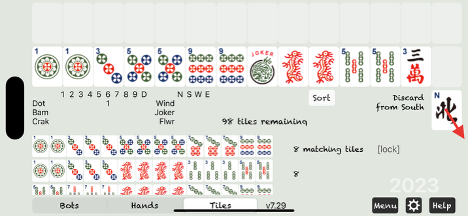
Discards will come from South, then West, then North.
After those three, a 14th tile will be added to your hand — and it’s your turn to discard again.
Calling a Tile
Section titled “Calling a Tile”To call a discard from another player (Bot), drag the tile to the rack above your hand.
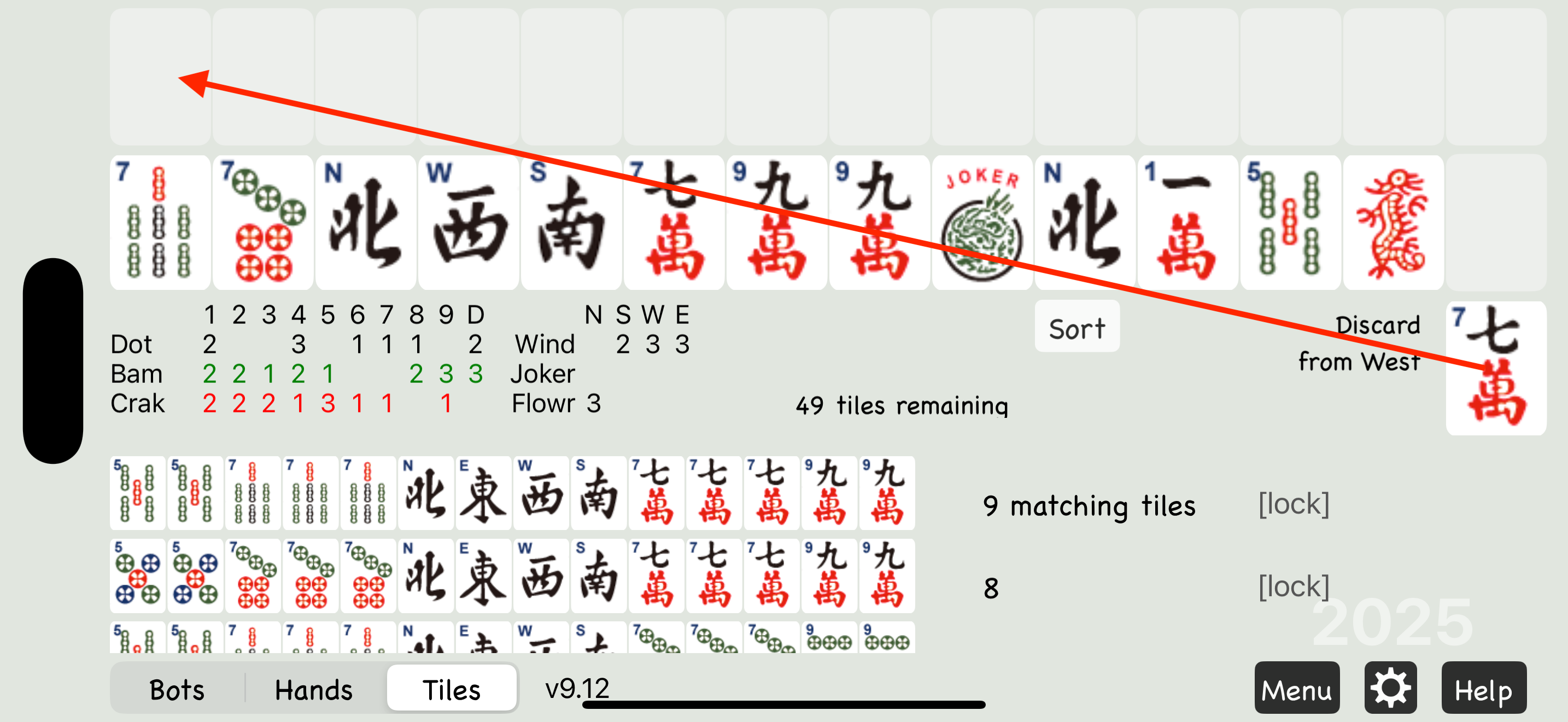
Then drag matching tiles from your hand to complete the set you’re exposing.
The Mahjong Practice app uses the position of Jokers to determine which set they belong to.
Try to “bookend” the Jokers when possible — for example: 7J77 or 77J7 or 7J7
If you can’t bookend, place Jokers to the right — for example: 7JJ
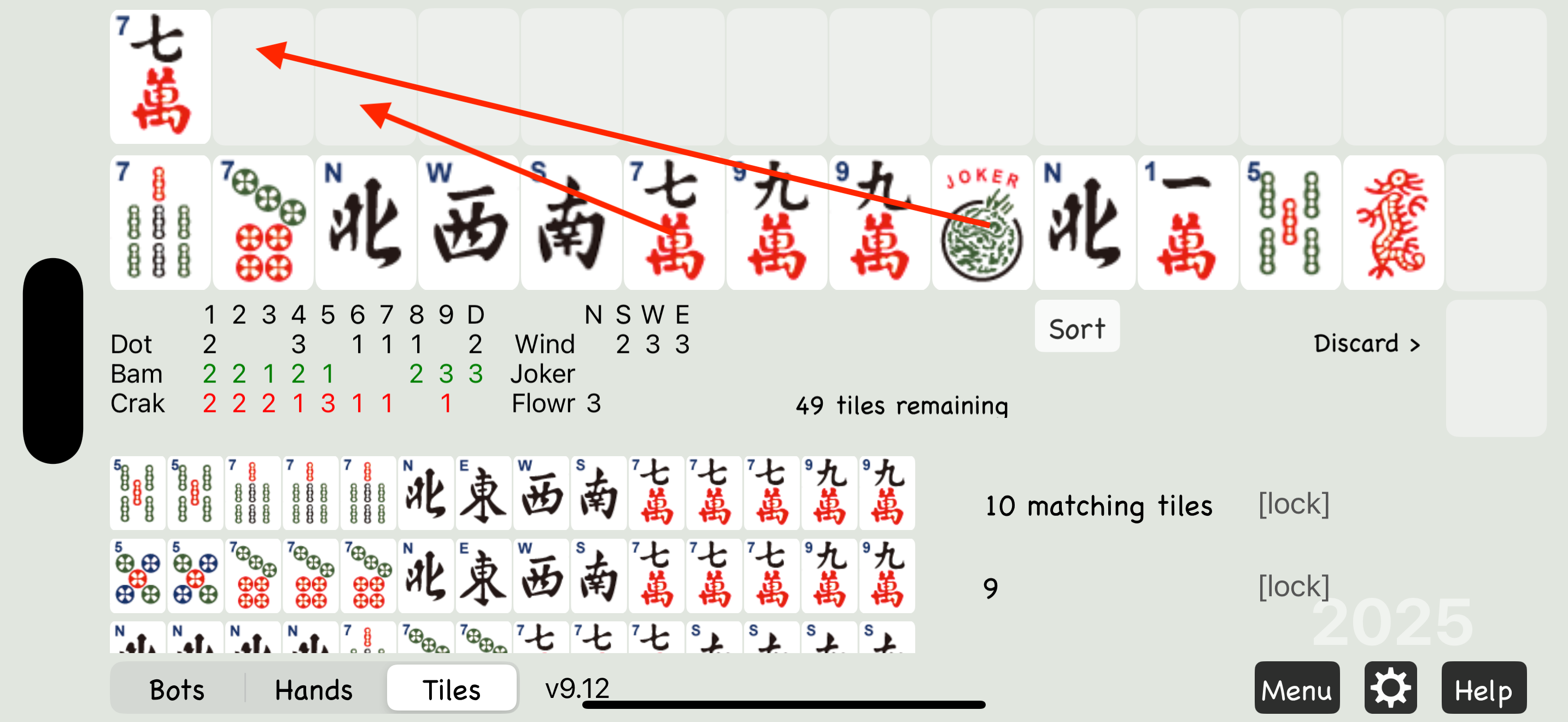
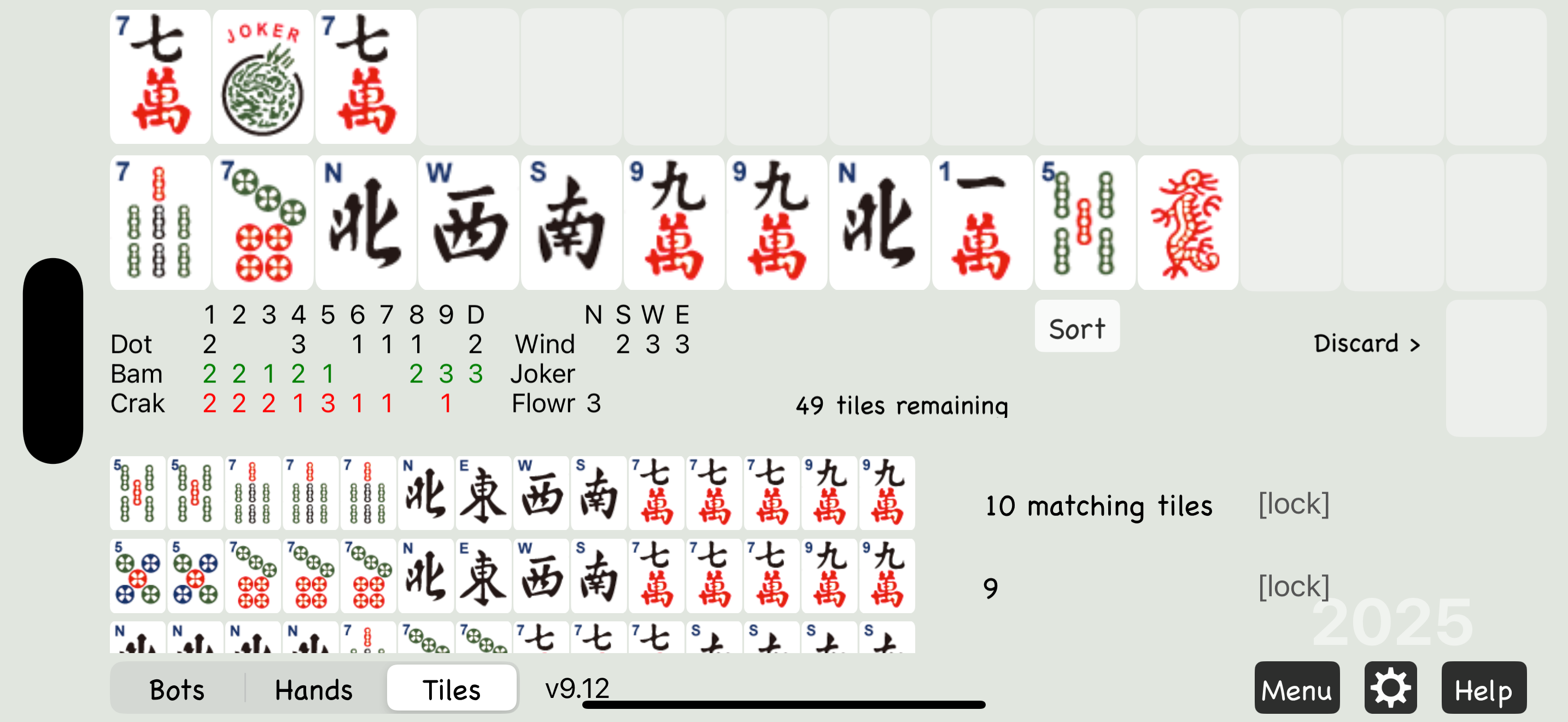
Then discard a tile from your hand to complete your turn.
Declaring Mahjong
Section titled “Declaring Mahjong”When you draw a winning tile, Mahjong Practice will detect it and display a “Declare Mahjong” button.
Tap the button to expose your full hand and declare Mahjong.
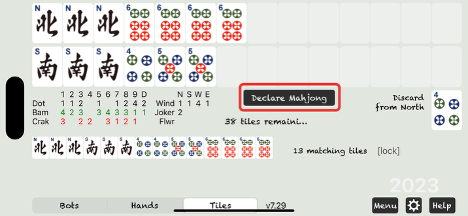
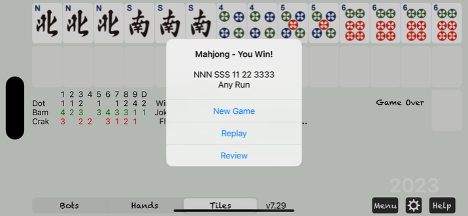
If the app doesn’t recognize your winning hand, drag all your tiles to the top rack to expose them. The app will recheck your hand. If it’s valid, it will be counted. If not, a screen will appear showing the closest matching hand. This can help identify any misreading of the card.
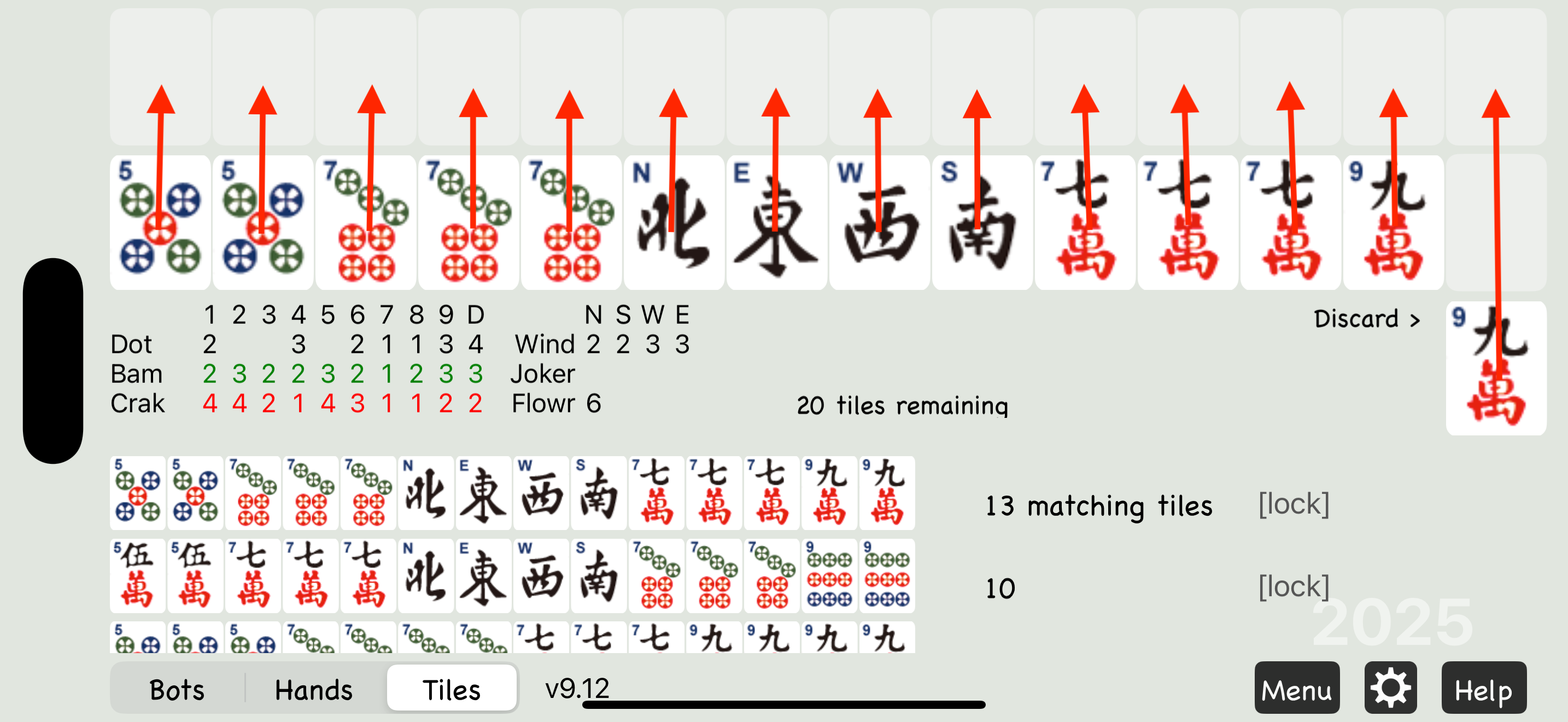
If it still looks correct to you, or you suspect a bug, email a screenshot to support@eightbam.com and we’ll take a look.
Joker Exchange with Bots
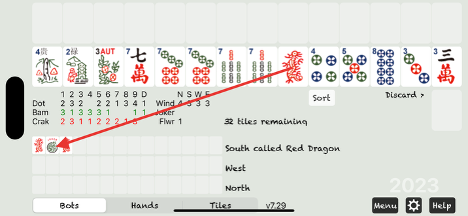
Section titled “Joker Exchange with Bots”When bots call discards, they expose their tiles in the Bots View. If a bot exposes a Joker and you have the matching tile, you can exchange it by dragging your tile to the bot’s rack and dropping it over the Joker’s position. The Joker will pop up into your hand.
Joker Exchange on Your Rack
Section titled “Joker Exchange on Your Rack”Drag a matching tile from your hand and drop it onto a Joker on your rack. Then, just like in a live game, drag the Joker back into your hand.